How I Updated My Portfolio
How I migrated my portfolio from having to manually edit config.ts and add blogs to using DecapCMS for editing, And Netlify Auth for authenthication.
1. Issues with previous site:
With my previous site, while it looked and functioned well to the end user 2 drawbacks were that i had to directly clone, edit the centralized config file, src/config.ts for modifying anything and had to manually write a mdx file using VSCode. This was inconvenient to do.
2. How I migrated my site
I decided that it would be a waste of my effort to fully rebuild my site from scratch, after trying to do it. So, instead I came up with a solution. I used DecapCMS (Previously Netlify CMS) for editing, as it has a robust, easy to use, and adaptable configuration system. For authentication, I chose Netlify Identity as it was simple, robust and easy to setup.
I started by first removing myself from Cloudflare’s DNS system, and migrated back to the one my domain registrar - Porkbun, offered. Now I had full control on the DNS, I migrated the portfolio site from Vercel (a hosting provider), to Netlify (another hosting provider). This gave me easy access and integration with Netlify Identity and DecapCMS.
I also chose DecapCMS because it’s UI was easy to use and simple. Then, I setup DecapCMS and Netlify Identity, and then I had them installed. Next, I properly configured DecapCMS to adapt to my site’s structure, which was slightly challenging.
3. The End Result
Fun fact: You’re currently reading this on the migrated site, and this blog/project was written using Decap CMS.
A fully functional, headless, dynamic with robust editing and authentication portfolio site, hosted for free on the hosting provider Netlify.
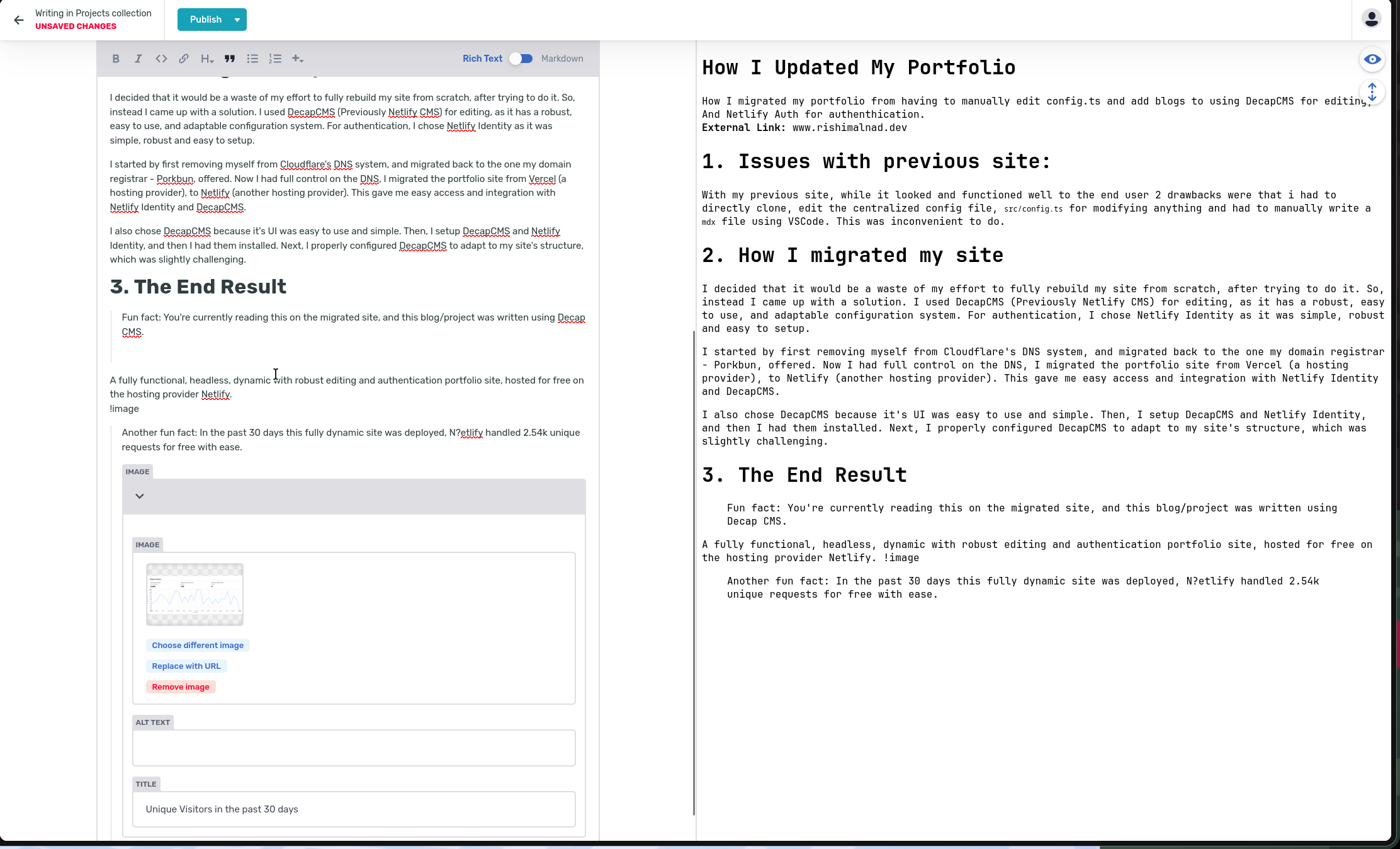
Another fun fact: In the past 30 days this fully dynamic site was deployed, N?etlify handled 2.54k unique requests for free with ease.
